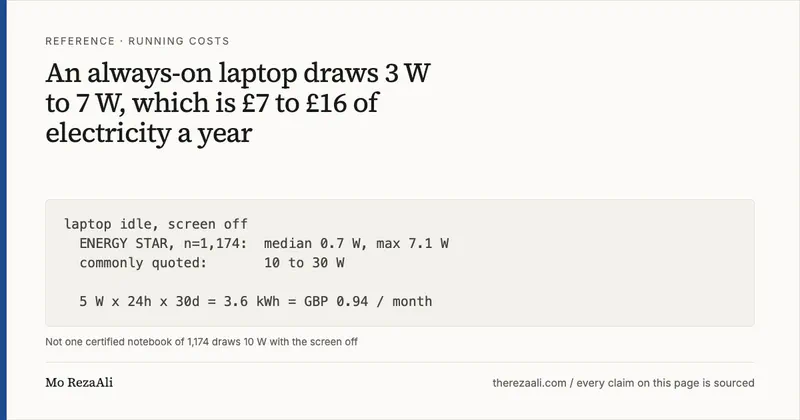
An always-on laptop draws 3 W to 7 W, which is £7 to £16 of electricity a year
The guess I inherited was 10 W to 30 W. The certified data puts it at 3 W to 7 W: £7 to £16 a year, four or five dollars of model spend, and $0 in licences at this scale.

On this page
Every automation I run only runs while I am sitting in front of it. I fill the form, the steps go green, I approve the output, I close the laptop, and the print floor goes dark. The factory only exists while I am standing in it. So the work that did not happen last week wasn’t blocked by money or by ideas. It was blocked by me being asleep, at a desk, or on a train.
The obvious repair is a machine that keeps working when I am not there, and the internet is not short of guides telling you how to install one. What almost nobody publishes is the bill. How many watts, at whose unit rate, for how many hours. How many cents per scheduled run, at which per-token price. Which vendor licence thresholds bite a business and leave a hobbyist alone. And, the part that surprised me most, which spending caps actually exist rather than which ones people assume exist.
So this page is two documents: the money and the reasons to walk away, then the build in eight parts, every command carrying the line that tells you whether it worked. What I did was write the specification, price every component against a primary source, and do the arithmetic before spending anything. I have not run it at all yet. Nothing below is a measurement from my own machine, because there is not yet a machine to measure.
What it would be, and who should close this tab
The design calls for a Windows laptop that stays home, plugged in, with sleep and lid-close-to-sleep switched off, because a sleeping computer does nothing at 03:00. The only wallet in the system would be a prepaid OpenRouter account funded with a single small top-up. The interface would be a chat page served by Open WebUI in a Docker container on that laptop, reachable from a phone over Tailscale’s private network rather than through a hole punched in a router. And the worker would be Hermes Agent, holding a list of scheduled jobs, answering a Telegram bot allowlisted to exactly one account, and starting itself again after a reboot. One job would fire early and leave a market brief on a phone before its owner is awake; the bot would make the machine reachable from anywhere, answering exactly one person; and the paid models anyone would use in a commercial AI chat would run on a page served from a laptop you own.
Four installs, one small top-up, and no hole in the router. One inbound rule does get added to the laptop’s own Windows firewall in Part 6, scoped to private networks, and I would rather name that here than let this page claim nothing is ever opened while Part 6 tells you to open something.
The disqualifiers come before the instructions, because the cheapest possible outcome of reading this is that you spend five minutes and decide against it.
Your only laptop travels with you. The machine has to stay home and stay on. What still applies to you is the cost arithmetic, which holds for any hosted model you already pay for.
You have an Intel Mac. The worker software doesn’t support it. Apple Silicon Macs can run this, with a caveat covered further down.
The machine has less than 8 GB of RAM, or runs an older Windows. Below Windows 10 22H2 or Windows 11 23H2 it will fight you at every step.
The machine is not yours to administer. A work laptop or a locked-down family PC won’t let you install software or change power settings, and both are required.
One thing to check now rather than at step forty. Docker’s
Windows install requirements
list the Pro, Enterprise and Education editions. Press the Windows key, type
winver, press Enter, and the window names your edition. If it says Home, treat
Part 2 as your test and attempt it before spending any money, which is why it is
the first install rather than the last.
Table: What the build asks of you before you start. Money figures are from the sources cited in the sections below; the disk figure is this page’s working minimum rather than a vendor-published requirement.
| What it takes | The number |
|---|---|
| Your time | About three hours over two sittings. Two restarts during the install, one reboot test at the end. |
| One-time money | $5 of model credit. The card fee is 5.5% with a $0.80 minimum, so the charge lands around $5.80. No subscriptions. |
| Monthly money | Electricity, roughly £0.60 to £1.30 at the current UK capped rate, plus model spend of roughly a third of a dollar. |
| The machine | A Windows laptop that stays home, plugged in, on your home Wi-Fi. Windows 10 (22H2) or Windows 11 (23H2 or later), 64-bit, 8 GB RAM, 20 GB free disk. |
| Your phone | Android or iPhone, with Telegram and one more free app. |
| Your router | Untouched. No port is forwarded from the internet, ever. One rule is added to the laptop’s own firewall in Part 6, scoped to private networks. |
The money
Electricity, and what a laptop actually draws
Two numbers turn a laptop into a monthly bill: what it draws, and what a kilowatt-hour costs where you live. The second is published by regulators. The first is where nearly every guide, including the source material this build came from, quietly guesses, and the guess I inherited was 10 W to 30 W with the screen off. It’s wrong, and it’s wrong in the expensive direction.
ENERGY STAR publishes measured, at-the-wall figures for certified computers under IEC 62301, and its “Long Idle” state is defined as awake with the display backlight off, which is exactly the state this build sits in for almost the whole day. Across the 1,174 notebook-class models in that database on 6 August 2026 the median long-idle draw is 0.7 W, the 95th percentile is 2.1 W, and the highest single entry is 7.1 W. Not one of the 1,174 reaches 10 W with the screen off. The inherited range sits close to the ceiling the EU’s Ecodesign rules permit for a notebook, which is to say the figure everyone repeats is closer to the worst computer the law allows than to a normal one.
The complication has to travel with the number, because it moves it. Those sub-1 W readings depend on the platform dropping into a low-power S0ix state when the backlight goes off, and a resident Docker container plus a polling agent are precisely what prevents that transition. Of the 1,148 rows typed plainly as “Notebook”, 1,011 answer the sleep-mode field at all and 614 of those report their long-idle state as a sleep state, so for a majority of certified machines the published floor is a number this build will never see.
That rules out the bottom of the range and leaves the top. The same database puts short-idle, meaning awake with the screen on, at a median of 5.0 W, and the median per-model gap between the two states is 4.1 W. That gap is not the display alone: it is the display plus the deeper sleep the machine is no longer taking, and this build gives up the second half of it. So the honest working envelope is the certified screen-off band with its floor removed, roughly 3 W to 7 W, where 7 W is within a rounding error of the highest figure any of the 1,174 models records. Call it bounded inference from a measured ceiling rather than a measurement of anything. One caveat travels with it in the other direction: the ENERGY STAR list is certification data and is biased toward efficient hardware, so a gaming laptop with discrete graphics is outside everything above.
Two published rates turn watts into money. The UK figure is Ofgem’s capped average unit rate of 26.11p per kWh for 1 July to 30 September 2026. The EU figure is Eurostat’s average household price of EUR 0.2896 per kWh for the second half of 2025. Both move, and both are linked so you can substitute your own. The arithmetic is watts times 24 hours times 30 days, divided by 1,000.
Table: Monthly electricity for a laptop left running continuously, across the idle-draw range the published measurements support. UK rate is Ofgem’s capped unit rate for 1 July to 30 September 2026; EU rate is Eurostat’s household average for the second half of 2025.
| Idle draw | kWh per month | UK at 26.11p/kWh | EU at EUR 0.2896/kWh |
|---|---|---|---|
| 3 W | 2.16 | £0.56 | EUR 0.63 |
| 5 W | 3.60 | £0.94 | EUR 1.04 |
| 7 W | 5.04 | £1.32 | EUR 1.46 |
| 10 W | 7.20 | £1.88 | EUR 2.09 |
The last row is the inherited guess, kept for comparison. It is above the screen-off draw of every one of the 1,174 certified models, so treat it as the ceiling of the old assumption rather than a figure this build is likely to hit.
Your standing charge is not in that table on purpose. You pay it whether this laptop runs or not, so only the added kilowatt-hours belong to the machine.
The envelope is roughly £0.56 to £1.32 a month in the UK, EUR 0.63 to EUR 1.46 on the EU average. Seven to sixteen pounds a year.
Which retires a claim I was going to make. At 10 W to 30 W electricity was the largest recurring cost by a wide margin and the sentence wrote itself; at 3 W to 10 W it is merely the likely largest line at the usage level this page assumes, the two costs are now the same order of magnitude, and which one wins depends on how heavily you use the thing. The only real-world measurement either document has points the other way: the author of the guide this build derives from measured $2 to $6 a month of model spend on a heavier two-machine setup. One person’s usage, not a forecast, and not your expected spend either. It is still the only observed model-spend number in the file, and dropping it while asserting the opposite would be the wrong way round.
A smart plug with a power display settles the whole question in a day.
What one scheduled run costs
The job I specified is a morning brief: at 07:30 the worker searches the web for what moved in a chosen market overnight and sends a handful of bullets with source links to Telegram. Hermes handles the scheduling in chat, and jobs report back to wherever they were created.
Start with the naive version, because it’s the one every guide publishes. Assume
one run sends about 6,000 tokens in and gets about 700 back. On
deepseek/deepseek-v4-pro, which
OpenRouter’s own model API listed at
$0.435 in and $0.87 out per million tokens on 5 August 2026, that’s $0.0026 plus
$0.0006. A third of a cent.
That number is wrong, and it’s wrong structurally rather than sloppily. A
search-and-summarise brief is not one request. It is a tool loop: the worker asks
the model what to do, the model calls web_search, the results come back, the
model calls web_extract on a page or two, the results come back again, and only
then does it write the brief. Each of those is a separate API call, and every
call re-sends the whole accumulated transcript, because that is how a stateless
chat completions API works. This page explains the same mechanism for long chats
three paragraphs from now. It applies to the scheduled job first.
So take the shape rather than a false precision. Roughly N tool turns means roughly N times the transcript re-sent, and the transcript grows as fetched text lands in it. A three-turn brief finishing with a 6,000-token transcript sends nearer 12,000 to 18,000 input tokens across the run.
Table: One morning-brief run on deepseek/deepseek-v4-pro at OpenRouter’s listed prices on 5 August 2026, modelled as a three-turn tool loop. The token counts and the turn count are assumptions for a search-and-summarise job, not a measurement.
| Direction | Tokens | Price per 1M tokens | Cost |
|---|---|---|---|
| Input, as a single request | 6,000 | $0.435 | $0.0026 |
| Input, three turns re-sending the transcript | about 18,000 | $0.435 | $0.0078 |
| Output, three turns | about 900 | $0.87 | $0.0008 |
| One run | about $0.009 | ||
| Thirty runs | about $0.26 |
Nearer a cent a morning than a third of one, and about a quarter a month for a job that runs every day of it. The turn count is a guess as well, since a brief that opens eight pages costs more than one that opens two, and I can’t tell you which yours will be. The ground truth is OpenRouter’s activity page, which logs every request with its real cost, and after the first week of real runs that page replaces this table entirely.
Ad-hoc chat behaves the same way and has one trap in it. Long conversations re-send the whole history with every message, so the twentieth turn in a thread costs many times what the first one did. Forty ordinary standalone questions in a month land around $0.05 to $0.15 by the same arithmetic. Forty turns of one enormous thread do not. Add the two and the year comes to roughly $4 to $5, which still fits inside the one-time $5 credit, but no longer with room to spare.
Three models, and the one that can make this expensive
The chat interface is wired to exactly three model IDs rather than the hundreds OpenRouter offers, which keeps the dropdown short and the choices deliberate.
Table: The three models on the allowlist, with prices per million tokens from OpenRouter’s model API on 5 August 2026. All three carry a 1,048,576-token context window.
| Model | Input | Output | What it is for |
|---|---|---|---|
deepseek/deepseek-v4-flash-0731 | $0.09 | $0.18 | Bulk and mechanical work: classification, reformatting, first drafts, anything scheduled that runs often |
deepseek/deepseek-v4-pro | $0.435 | $0.87 | The default. Briefs, research, summaries, most real thinking |
moonshotai/kimi-k3 | $3.00 | $15.00 | Escalation only, one task at a time |
Read the right-hand column as a ratio. Kimi K3’s output price is $15.00 against V4 Pro’s $0.87, roughly seventeen times, on the side of the ledger you have least control over, because you can budget your input and you cannot budget how much a model decides to write.
Which gives the escalation rule its shape. Start at V4 Pro. Drop to Flash when the job is mechanical and frequent, because at $0.09 in you can afford to run it hourly without thinking. Escalate to K3 only when V4 Pro has visibly failed at the task in front of you, then go back down. A K3 habit is the only realistic route by which this stack stops being a rounding error on your electricity bill.
Context is the other half. All three models advertise a 1,048,576-token window, and a large window is an invitation to paste enormous things into it. Feeding 500,000 tokens of context to K3 costs 500,000 divided by 1,000,000 times $3.00, which is $1.50 before the model has written a word of reply. On V4 Pro the same dump is about $0.22. On Flash it is $0.045. A window is what the model will accept, not what you should send.
Pin the dated snapshot where one exists
The flash entry above is written as deepseek/deepseek-v4-flash-0731 rather than
the unsuffixed slug, and that is a deliberate choice with money attached. Model
names come in two flavours on any hosted platform: a dated snapshot points at one
frozen release, while a bare or -latest name points at whatever the provider
currently considers current, which means it can repoint under you with new
weights, different refusal behaviour, different output length and a different
price. In an interactive chat you’d notice inside a day. For a job that fires at
07:30 while you’re asleep you might not notice for a fortnight, and the first
signal would be either a strange brief or a bill that doesn’t match the
arithmetic above.
So the rule is to pin the dated name in anything scheduled. It does not survive contact with the model this build actually schedules.
On 6 August 2026 I read
OpenRouter’s model API and pulled every
deepseek-v4 slug it publishes. There are four: deepseek/deepseek-v4-flash,
deepseek/deepseek-v4-flash-0731, deepseek/deepseek-v4-pro, and
~deepseek/deepseek-v4-flash-latest. Flash has a dated snapshot. Pro does not.
The default brain Part 7 sets is deepseek/deepseek-v4-pro, so the rule as
stated is unfollowable for the one model that matters most here.
Two ways out, and pick one on purpose. Keep Pro and accept that no pin is
available, in which case the monthly check stops being hygiene and becomes the
only control you have: read
OpenRouter’s model list, confirm the slug still
exists and the price still matches the table above, and read one brief properly
instead of skimming it, because a repointed model shows up in the writing before
it shows up in the bill. Or move the schedule to
deepseek/deepseek-v4-flash-0731, which is pinned, costs roughly a fifth as
much, and is what this page’s own escalation rule recommends for a mechanical job
that runs daily anyway, at the price of quality on the one output you read every
morning.
Part 7 keeps Pro and pairs it with the calendar reminder. A pinned name that starts returning “not found” is the system telling you to go look. An unpinned one never tells you anything.
The caps that actually exist
OpenRouter standard accounts have no account-level spending cap. That is the finding I did not expect, and it is the sharpest thing on this page. Their limits documentation is explicit that what constrains you is the prepaid balance and per-key limits, and there is no monthly-ceiling setting to switch on. Plenty of guides describe one. It isn’t there. If you were relying on a dashboard toggle to save you from a loop, you were relying on something that does not exist.
What does exist is three layers, and they do different jobs.
The balance is the wall. OpenRouter is prepaid. The minimum purchase is $5 per transaction under section 4.1 of the terms, and the card fee is 5.5% with a $0.80 minimum per their FAQ, so the first charge lands around $5.80. Leave auto top-up switched off and the worst possible month is the credit you loaded. The same terms allow unused credits to expire after 365 days, so stockpiling a large balance buys you nothing except a larger blast radius.
The per-key limit is the fuse, and a fuse only does work if it is smaller than the wall. Create one named key for this machine and set a credit limit on it in the Keys interface. When a key reaches its limit, requests fail with a 402 and the jobs stop, which is the behaviour you want: a loud, specific error on the activity page rather than a quiet drain.
Part 4 departs from the guide this build came from, deliberately. That guide loads a $5 balance and sets the key limit to $5, and because a fuse rated at exactly the wall’s value can never trip before the wall does, what reads on the page as two independent safety layers turns out in practice to be one layer written down twice, which fails you precisely in the case both were there to cover: the unattended loop at 04:00 that nobody is watching. Load $5, set the key to $2. A loop then stops at $2 with a visible error while $3 of balance sits untouched behind it, and you decide whether to raise the limit instead of learning the answer from an empty account. Two keys with separate limits give you two fuses, which OpenRouter’s provisioning documentation covers if you want per-job accounting.
The job list is the patrol. /cron list in the bot chat shows everything
scheduled. Read it weekly. Anything you no longer recognise or no longer open
gets paused or removed. One structural comfort:
Hermes documents that a scheduled job cannot create scheduled jobs,
so a runaway job can repeat itself but cannot multiply into a family of jobs
while you sleep.
A normal month on the activity page is one small entry around 07:30 each morning,
a scatter of chat entries during the day, everything in fractions of a cent.
Runaway has three shapes: the same job appearing many times an hour, which means
a schedule set wrong; entries on moonshotai/kimi-k3 you don’t remember asking
for, which means something defaulted to the expensive model; or a single day
costing more than a normal month, which usually means one job is being fed
something enormous every run.
The response, in order, and the order is the point. Pause the job first, in plain
language or with /cron pause, because stopping the spend beats diagnosing it.
Then /cron list for anything else you didn’t expect. Then the Keys page to
confirm the fuse held. Diagnose last. Your damage ceiling was set when you chose
the balance and the key limit, and if those two are right the worst outcome is an
annoying afternoon rather than a bill.
The absence of the morning message is also the monitoring system. If nothing arrives at 08:00, something is wrong, and it costs nothing to notice.
The licence lines that bite a business
Two of the four installs are free for a person and not necessarily free for a company.
Docker Desktop is free for personal use and for businesses under 250 employees and under $10 million in annual revenue. Docker’s licence page sets both lines, and crossing either one puts you on a paid subscription. The cheapest paid tier on Docker’s pricing page is Docker Pro at $9 per user per month billed annually, but Pro is a single-user plan, so a business licensing a team cannot buy it: that is Team at $15 or Business at $24 per user per month. Two thresholds joined by “and” on the free side means either one can move you, and the price you land on is not the headline one.
Tailscale reads softer, but their page resolves more of it than I first credited. The pricing page describes the free Personal plan as “only suitable for non-commercial use of Tailscale”, and a line earlier as being “for individuals who want to use Tailscale at home”. It also states the mechanical rule Tailscale applies at signup: an account created with a public email domain lands on Personal, while a custom domain triggers a business trial. That is Tailscale telling you how it reads your situation, and it’s why Part 6 says to sign in with a personal address. What it doesn’t resolve is the middle case, one person at home on a personal address reaching their own laptop to run their own business errands. Standard is listed at $8 per user per month. Read their page and decide, or pay the $8 and stop thinking about it.
Everything else is genuinely $0 a month at this scale: Open WebUI, Hermes Agent, and the Telegram Bot Platform. The running total is a pound or two of electricity plus pennies to a couple of dollars of model spend, on hardware you already own, after the one-time top-up.
Privacy, without hedging
Prompts route through OpenRouter to a model provider, and each provider handles data under its own policy. OpenRouter states that it does not store prompt or completion content unless you opt in, but it always stores request metadata: token counts, timestamps, model names. Its provider routing controls govern whether requests can go to providers that may train on the data, and the privacy policy is the document that binds.
Treat the machine like any other cloud service, because that’s what it is. The chat page runs on your laptop; the thinking does not. Market research and draft copy are fine. Customer names, addresses, invoices, anything you wouldn’t paste into a normal AI chat window: no. Any guide telling you a self-hosted chat page makes your prompts private has confused the interface with the model.
The chat page itself is protected by whatever password you set on its first account, and Open WebUI’s hardening guide covers locking it down. That password opens a door to a machine on your home network, so it should not be one you use anywhere else.
Renting a server instead
The laptop is one answer to “where does this run”. The other is a small virtual server, and it deserves a real comparison rather than a footnote.
State the requirement before the prices and you stop buying compute you’ll never use. Open WebUI publishes no minimum memory figure: I read its quick start and its README on 6 August 2026 and neither states one. So the 1 to 2 GB I work from is an estimate, and this is what it rests on. In the project’s own discussion of memory use a maintainer reports the container idling at 1.4 GB, the person who opened the thread measures 500 MB from a cold start and over 1 GB in use, and a contributor gets it to roughly 200 MB by stripping optional services out; a separate thread on minimum system requirements puts an API-only install at 1 GB of RAM, 1 CPU core and 10 GB of disk. User and maintainer reports, not a vendor requirement, and they select every row below.
The agent is small, the operating system takes its share, and the model runs somewhere else entirely, so the CPU is close to irrelevant: this thing is idle more than 99% of the time and then spends thirty seconds waiting on someone else’s GPU. A 2 GB instance fits. A 4 GB instance is comfortable.
Table: Cheapest plan at each provider that genuinely fits Open WebUI plus the agent plus the operating system, read on 6 August 2026. Prices exclude VAT and are the on-demand monthly rate for the provider’s cheapest region. The Vultr and Linode/Akamai pages answer automated requests with HTTP 403, so those two rows were read in a browser and are cited inline below rather than in this page’s machine-checked source list.
| Provider | Plan | RAM | vCPU | Disk | Monthly |
|---|---|---|---|---|---|
| Vultr | Cloud Compute, Regular Performance | 2 GB | 1 | 55 GB SSD, 2 TB transfer | $10.00 |
| DigitalOcean | Basic Droplet, Regular | 2 GB | 1 | 50 GB SSD, 2,000 GiB transfer | $12.00 |
| Linode / Akamai | Shared CPU, Linode 2 GB | 2 GB | 1 | 50 GB, 2 TB transfer | $12.00 |
| Hetzner Cloud | CPX12, Regular Performance, AMD | 2 GB | 1 | 40 GB | EUR 11.49 plus EUR 0.50 IPv4 |
| Oracle Cloud | Always Free, Ampere A1 | up to 12 GB | up to 2 OCPU | 200 GB block storage | $0.00 |
The 4 GB step-up, same sources and same date, runs $20 at Vultr, $24 at DigitalOcean, $24 at Linode, and EUR 19.49 for Hetzner’s CPX22.
Three rows came out of awkward pages, and saying so is more useful than
pretending otherwise. Vultr and
Akamai, which is where
Linode’s plan table lives now that linode.com/pricing redirects, both answer
non-browser requests with HTTP 403, so their numbers were read in a browser on
6 August 2026. Hetzner’s
regular performance page
renders prices client-side and every cell came out blank in my session, so rather
than fill the gap from memory I read each row’s product key out of the markup and
resolved it against
the live price feed the page itself loads.
And before planning around Hetzner at all,
every row on its cost-optimized line
carried a “not available” label on the day I looked, including the cheap Arm plan
that usually makes Hetzner the obvious answer. Stock changes. Check it yourself.
Oracle’s free tier is the genuinely interesting row. Oracle’s own Always Free documentation states an Ampere A1 allocation of “1,500 OCPU hours per month” and “9,000 GB hours per month”, which is 2 OCPUs and 12 GB of memory running continuously, plus 200 GB of storage and 10 TB of outbound transfer. Several times what this build needs, at nothing a month.
Two points for the server, two for the laptop
I am not stacking this. The server genuinely wins twice. It simplifies the network, because Telegram’s API and the model API are both outbound HTTPS from any host and a server has a public IP, so the private-network step becomes optional rather than load-bearing.
And it dissolves the Docker licensing question. A server runs Linux, so you run Docker Engine rather than Docker Desktop. Docker’s engine documentation states the Apache License, Version 2.0, and the LICENSE file in the moby repository is Apache License, Version 2.0, January 2004. The thresholds on Docker Desktop’s licence page do not reach Docker Engine on Linux, so if your company is over those lines that is $9 to $24 per user per month the server side wins outright.
The laptop wins twice as well. The first is arithmetic: it’s a sunk cost, and its marginal cost is electricity, roughly £7 to £16 a year at the draws in the table above, against $120 to $144 a year for the cheapest fitting server, recurring forever, in a currency that may not be yours.
The second is where the disk lives. On a rented server the provider is a party to your data at rest: the hypervisor host can read the guest’s memory and disk, snapshots sit on their storage, and the volume is reachable by their staff, their subpoena process and their jurisdiction. Hetzner is Germany and Finland and is framed around GDPR; DigitalOcean, Linode/Akamai, Vultr and Oracle are US-headquartered whichever region you pick. On a laptop in your own home, the chat history, the Telegram credentials and the API key sit on a disk no provider can touch. For an assistant that reads your messages, that difference is not small.
Twelve months, and which one wins
Table: Twelve-month total for the same build in three places. Assumptions: the laptop is already owned and its purchase price is excluded; idle draw is taken at 7 W, the upper end of the bounded-inference range above and not a measurement; the UK rate of 26.11p/kWh (Ofgem, 1 July to 30 September 2026) and the EU average of EUR 0.2896/kWh (Eurostat, second half of 2025) are held flat for twelve months, which they will not be; model spend is identical in all three rows because the model runs remotely in all three, and at roughly $4 to $5 a year it still fits inside the one-time credit, though only just; server prices are the on-demand rates read on 6 August 2026, exclude VAT and any overage, and assume no price change; the Oracle row assumes the Always Free tier remains available and survives the capacity limits Oracle applies to it; no currency conversion is performed anywhere in this table.
| Where it runs | Recurring per month | Twelve-month total, including the one-time $5.80 of model credit |
|---|---|---|
| Laptop you already own | £1.32 (EUR 1.46) electricity | $5.80 plus £15.84 (EUR 17.52) |
| Cheapest fitting VPS (Vultr 2 GB) | $10.00 hosting | $125.80 |
| Free-tier VPS (Oracle Always Free A1) | $0.00 | $5.80 |
Two inputs moved while this page was being checked. The electricity figure came down when the inherited idle-draw assumption was replaced with published measurements, so the laptop row is roughly half what an earlier draft carried, and the model-spend estimate went up, because re-costing the brief as a tool loop rather than a single request roughly triples it. Neither change reorders the table: the laptop still wins on money by roughly a factor of five at any plausible exchange rate, which is why no conversion is performed here.
Rent the server when uptime matters more than ownership. When the laptop would be closed, carried, sleeping, or sitting on a residential connection that drops. When somebody other than you depends on the thing answering. At $10 to $12 a month you are buying availability and simplicity, not compute. Oracle’s free tier is the middle path worth taking seriously, with three caveats: it is capacity limited and can refuse to launch, it wants a card at signup, and it puts your chat history on a US hyperscaler’s disk.
Keep the laptop when the hardware is already paid for and already running, when the data is personal enough that provider access is a real objection, and when a few hours of downtime a year cost you nothing. For a single-user assistant in your own house, that last one is usually the honest answer.
Four things I left out, and why
An Apple Silicon Mac instead of a Windows laptop. Docker Desktop and Open WebUI behave the same way on macOS, and Hermes supports Apple Silicon while explicitly not supporting Intel Macs. The catch is physical: a closed MacBook sleeps, so it has to live lid-open with sleep disabled. Workable. The Windows laptop simply has fewer ways to go wrong.
A free local model on your own GPU. Tools like Ollama run open weights on your own hardware, which is free per run, private, and works offline. On an ordinary laptop GPU it’s also slow, slow enough that a job set for 07:30 is not reliably finished by 08:00. And the whole nightly workload costs a few tens of cents a month on hosted models, so local inference is a hobby lane rather than week-one material.
A browser-based coding environment. Open WebUI’s team ships
a tool called Open WebUI Computer, installed as the cptr package,
which serves your machine’s real files, terminal, editor and git to a browser
tab. It works. It also hands full access to your machine to whoever holds the
login, and nothing in the first month of this build needs it.
Running a Claude subscription through third-party tools. The setup this build
derives from plugged a subscription-authenticated CLI into that environment to
reuse a plan you already pay for. I had assumed Anthropic’s documentation ruled
that out, and on re-reading, the live pages say something more interesting.
The Agent SDK overview
points third-party tools at API-key authentication, but
the support article on using the SDK with a Claude plan
opened on 6 August 2026 with a banner reading “Update June 15: We’re pausing the
changes to Claude Agent SDK usage described below. For now, nothing has changed:
Claude Agent SDK, claude -p, and third-party app usage still draw from your
subscription’s usage limits.” So it works today, by the vendor’s own words, and
in the same sentence the vendor tells you it was about to stop working and may
yet. A policy explicitly described as paused is a poor foundation for a process
you leave running unattended for a year. If you pay for Claude, use Claude’s own
apps alongside this build, and watch that banner rather than this page.
The build, eight parts
One path, in order, with no choices to make along the way. Do all eight parts sitting at the machine that will stay home, and read this page in a browser on that machine so you can copy commands rather than retype them.
Each command block has a line above saying what it does and a line beneath saying what a working result looks like. That second line is the point of the format: most walkthroughs tell you what to type and leave you to guess whether it worked, so the first silent failure takes the next hour with it. If your screen doesn’t match the “what you should see” line, stop and read that part’s failure table. Anywhere you substitute your own value, the text is an OBVIOUS-PLACEHOLDER in capitals with a filled example underneath. Parts 1 to 5 make a sensible first sitting, Parts 6 to 8 a second.
Part 1, make the machine stay awake (15 min)
Factory settings put a laptop to sleep the moment you stop touching it.
- Plug it in. It stays plugged in from now on.
- Open Settings. Windows 11: System, Power and battery, Screen and sleep. Windows 10: System, Power and sleep. Different names, same settings.
- Set “when plugged in, put my device to sleep after” to Never.
- Set “when plugged in, turn off my screen after” to 5 minutes. A dark screen saves power while the machine underneath keeps working.
- Now the lid, which is the step people skip. Type “lid” into the Settings search box, open “Change what closing the lid does”, set “When I close the lid” in the Plugged in column to Do nothing, and save. Without this, shutting the lid puts the whole build to sleep.
Table: Part 1 failures and fixes.
| Symptom | Fix |
|---|---|
| No “plugged in” column on the lid screen | The laptop is running on battery. Plug it in and reopen the screen. |
| “Change what closing the lid does” not found in search | Windows key, type “control panel”, open it, then Hardware and Sound, Power Options, “Choose what closing the lid does” in the left sidebar. |
Checkpoint. Stop here and you still have a laptop that stays awake with the lid shut, which is the physical foundation of everything else. Test it: play a long video with sound, close the lid, listen. Audio still playing means the machine is awake.
Part 2, install Docker Desktop (40 min, two restarts)
Docker runs the chat interface in the background. Install it once, set it to start with Windows, never think about it again.
- Check the machine can run it. Task Manager (Ctrl+Shift+Esc), Performance tab, CPU, bottom right: “Virtualization: Enabled”. If Task Manager shows only a plain list of apps, click More details; on Windows 11, Performance is the graph icon in the left sidebar. Disabled means read the failure table before going any further.
- Open PowerShell as administrator: Windows key, type “powershell”, right-click Windows PowerShell, Run as administrator, Yes.
This installs the Windows subsystem Docker runs on:
wsl --install
What you should see: several components download and install, then a message asking you to restart the computer. Restart it.
- After the restart, a black Ubuntu window may ask for a username. Docker does not use it; close it.
- From Docker’s download page, take the AMD64 build of Docker Desktop for Windows (correct for both Intel and AMD laptops; ARM64 is for rare ARM machines) and run the installer. Keep “Use WSL 2 instead of Hyper-V” ticked if asked. Restart again if asked.
- Open Docker Desktop, accept the service agreement, and choose Continue without signing in. Wait until the whale icon in the tray stops animating and the window says Engine running.
- Gear icon, General, tick “Start Docker Desktop when you sign in to your computer”. That’s what brings the chat interface back after a restart. Do not skip it.
Table: Part 2 failures and fixes.
| Symptom | Fix |
|---|---|
| Virtualization: Disabled in Task Manager | It has to be switched on in the laptop’s BIOS. The no-key-tapping route: Settings, System, Recovery, Advanced startup, Restart now, then Troubleshoot, Advanced options, UEFI Firmware Settings, Restart. Fallback is tapping F2 or Delete during startup. Enable the setting named SVM Mode (AMD) or Intel VT-x / Virtualization Technology (Intel), save and exit. |
wsl --install errors about your Windows version | Windows is too old. winver shows your version; you need Windows 10 22H2 or Windows 11 23H2 or later. Run Windows Update, then retry. |
| Docker Desktop says WSL needs updating | In the same admin PowerShell run wsl --update, then reopen Docker Desktop. |
Checkpoint. Stop here and you still have Docker installed, running, and set to start with Windows.
Part 3, start the chat interface (20 min)
Open WebUI is a chat page served from your machine: the familiar layout, on your laptop, with an account that is yours alone. Open PowerShell, normal this time, no administrator needed.
This downloads the chat interface and starts it in the background, set to restart itself whenever the machine reboots:
docker run -d -p 3000:8080 -v open-webui:/app/backend/data --name open-webui --restart always ghcr.io/open-webui/open-webui:main
What you should see: several download progress bars, then one long string of random letters and numbers on its own line. That string means it started. The first download is a few gigabytes, so let it run. If the screen goes dark mid-download, that’s Part 1’s screen-off setting doing its job. Move the mouse; the download never stopped.
This confirms it is running:
docker ps
What you should see: a table with one row, open-webui, whose STATUS column
starts with Up.
- Open a browser on the machine and go to
http://localhost:3000, allowing a minute on first load. Click Sign up. Use a real email format, since nothing is ever sent and the address is only your username, and a strong password you use nowhere else, because this page is a door to your machine. - The first account created becomes the administrator, and sign-ups switch themselves off once it exists. Confirm that lock: your name at the bottom left, Admin Panel, Settings, General, sign-up toggle off. The wording shifts between versions. Your own account is unaffected.
Table: Part 3 failures and fixes.
| Symptom | Fix |
|---|---|
docker: command not found, or a pipe error | Docker Desktop is not running yet. Open it, wait for Engine running, try again. |
| Error says port 3000 is already in use | Re-run the long command with -p 3001:8080 instead, and use 3001 everywhere this page says 3000. |
| Page never loads | Wait 60 seconds after docker ps shows Up. The first start is slow. |
Checkpoint. Stop here and you still have a private chat page running on your machine. It has no brain yet.
Part 4, open the brain account (15 min)
OpenRouter is one account and one balance across many paid models. Load $5, set a smaller fuse inside it, and that balance is the hard ceiling on what this machine can ever spend.
- Sign up at openrouter.ai with a login you control long-term. Credits and Keys live under the profile icon, top right.
- Credits, add $5, the minimum per their terms. The 5.5% card fee with its $0.80 minimum makes the total about $5.80, itemised before you pay.
- Leave auto top-up off. Standard accounts have no account-wide cap, so the balance is the cap, and with auto top-up off the worst month costs $5.
- Keys, create a key named
night-shift, and put2in the credit limit field. If anything ever loops, the key shuts off at $2 with an error while $3 of your balance is still there. This departs deliberately from the guide this build follows, which sets the limit to the full $5: a fuse rated at the wall’s own value can never trip first, and two layers that fire at the same number are one layer. - The key is
sk-or-v1-plus a long string and it is shown exactly once. Copy it into a password manager before you close the page, because you paste it twice, in Part 5 and Part 7. It is the wallet: never in a chat message, a screenshot, or a shared workflow.
Table: Part 4 failures and fixes.
| Symptom | Fix |
|---|---|
| You closed the key window without copying it | It cannot be shown again. Delete the key on the Keys page, create a new one, copy it this time. |
| Checkout total looks higher than $5 | That is the purchase fee, itemised at checkout. A total near six dollars is correct. |
| Later, requests start failing with a 402 | The night-shift fuse tripped at $2, which is what it is for. Read the activity page to find what spent it, then raise the key limit on the Keys page. The balance behind it is untouched. |
Checkpoint. Stop here and you still have a funded model account with two real limits: a $5 wall and a $2 fuse inside it.
Part 5, wire the brain to the chat (15 min)
Two paste operations connect the account to your chat page, and an allowlist keeps the model menu at three entries instead of hundreds. Open WebUI’s own guide to OpenAI-compatible providers covers the screens if yours differ.
- On the chat page: your name at the bottom left, Admin Panel, Settings,
Connections. Under the OpenAI-compatible section, click add. Two fields
matter:
- URL:
https://openrouter.ai/api/v1. The/v1is not optional, and a missing/v1is the classic reason no models appear. - Key:
sk-or-v1-YOUR-KEY-HEREFilled example:sk-or-v1-9f3ab81c0d2e4f56a7b8c9d0e1f2a3b4(yours is longer)
- URL:
- In the same connection’s model IDs field, add exactly these three, one at a
time so each becomes its own entry rather than one comma-separated line:
deepseek/deepseek-v4-pro,deepseek/deepseek-v4-flash-0731, andmoonshotai/kimi-k3. - Save. Open a new chat, pick
deepseek/deepseek-v4-profrom the dropdown at the top, and send: “Reply with the single word OK.” Any sensible reply means the wiring works, because models are unreliable narrators and the exact words do not matter. - The real proof is elsewhere. Open the activity page and the test message is there as a logged request costing a fraction of a cent. That page is your receipts drawer from now on.
Table: Part 5 failures and fixes.
| Symptom | Fix |
|---|---|
| No models appear after saving | The URL has to be exactly https://openrouter.ai/api/v1. Re-check for a missing /v1 or a trailing space. |
| Model errors mentioning 401 | The key pasted wrong. Re-copy it with no spaces around it. |
| Model errors mentioning 402 | The $5 top-up did not complete, or the key’s $2 limit is spent. Check the Credits and Keys pages, in that order. |
| No model IDs field in your version | Save the connection, then go to Admin Panel, Settings, Models and switch off everything except the three above. |
Checkpoint. Stop here and you still have a working AI chat served from your own machine, with receipts. Good finish line for the first sitting.
Part 6, put it in your pocket (15 min)
Tailscale connects your own devices to each other over an encrypted private network, so your phone can reach the chat page from anywhere.
Never open a port on your home router to reach any of this. No step in this build touches your router.
On the machine, install Tailscale for Windows and sign in with an address ending @gmail.com, @outlook.com or similar. An address at your own business domain makes Tailscale treat you as a business and start a paid trial.
Click the Tailscale tray icon, behind the caret near the clock if hidden. The machine’s private address is on the line naming this computer, in the form
This device: 100.x.y.z. Write it down. This page calls it MACHINE-TAILSCALE-IP. Filled example:100.101.102.103Open the port to your private networks. Windows key, type
wf.msc, Enter. Inbound Rules, New Rule, Port, TCP, specific local ports3000(3001 if you switched ports in Part 3), Allow the connection, tick Private only and untick Domain and Public, name itOpen WebUI, Finish.That rule is on the laptop’s own firewall, not on your router, and it is scoped to networks Windows already classifies as private. No port is forwarded from the internet, so the only thing that can reach port 3000 is a device on a network the laptop already trusts, which after step 4 means your own tailnet.
On the phone, install Tailscale, sign in to the same account, flip its switch on, and allow the VPN configuration it asks for. That’s how Tailscale links your devices.
The proof: turn off the phone’s Wi-Fi so it is on mobile data, open the phone browser, and go to
http://MACHINE-TAILSCALE-IP:3000. Filled example:http://100.101.102.103:3000Log in with the account from Part 3.Then the step that stops this build failing silently in six months. Tailscale device keys expire, and the default expiry period is 180 days; when a device’s key lapses, connections to and from it stop working. For a machine you are deliberately not looking at, that is an outage with a half-year fuse already lit. In the Tailscale admin console open Machines, find this laptop, click the menu icon at the right of its row, and choose Disable Key Expiry. Tailscale’s own documentation names trusted servers and hard-to-reach devices as exactly the case for doing this.
Table: Part 6 failures and fixes.
| Symptom | Fix |
|---|---|
| Page times out on the phone | Check the Tailscale switch is on on the phone, that you allowed the VPN permission (toggle the switch again to re-prompt), and that the machine’s tray icon shows connected. Then the firewall rule: double-click Open WebUI in Inbound Rules, Advanced tab, tick all three profiles, because the Tailscale adapter can register as a public network. The machine is still not reachable from the internet; the rule only applies to networks the laptop is already on. |
| Wrong address | The 100.x.y.z address comes from the Tailscale tray icon, not from ipconfig. Re-copy it. |
| Login page loads but rejects the password | It is the Open WebUI account from Part 3, not your Tailscale login. |
| It worked for months, then the phone stopped reaching it | The device key expired. Sign the machine in to Tailscale again, then do step 6 so it cannot recur. |
Checkpoint. Stop here and you still have your machine’s chat, with your capped paid models, on your phone anywhere.
Part 7, hire the worker (25 min)
Hermes Agent is a free, open-source agent that lives on the machine, uses your OpenRouter balance as its brain, and in Part 8 answers Telegram messages and runs scheduled jobs. Open PowerShell, normal, not administrator.
This downloads and installs the worker and everything it needs:
iex (irm https://hermes-agent.nousresearch.com/install.ps1)
What you should see: an installer walks through downloading its components and
finishes without red errors. Then close PowerShell and open a new one so the
hermes command is picked up.
This confirms the install and shows which tools the worker has switched on:
hermes tools --summary
What you should see: a printed summary of enabled tools. Look for web_search,
because the test below depends on it.
This stores your OpenRouter key where the worker looks for it:
hermes config set OPENROUTER_API_KEY sk-or-v1-YOUR-KEY-HERE
Filled example: hermes config set OPENROUTER_API_KEY sk-or-v1-9f3ab81c0d2e4f56a7b8c9d0e1f2a3b4
What you should see: a confirmation that the value was saved.
This opens the model picker, where you set the worker’s default brain:
hermes model
What you should see: an interactive picker, arrow keys to move and Enter to
confirm. Choose OpenRouter as the provider, then select or type
deepseek/deepseek-v4-pro, and confirm it as the default. The picker on your
screen is the ground truth, not this page.
That slug is unpinned, and OpenRouter published no dated Pro snapshot on 6 August
2026, so put a monthly reminder in your calendar now to check the price and read
one brief closely. If you would rather have the pin than Pro’s writing, type
deepseek/deepseek-v4-flash-0731 at this picker instead.
This is the test that matters, brain plus live web in one shot:
hermes -z "Search the web for the current price of Bitcoin and answer in one line with the number."
What you should see: one line with an actual current price. That is proof the worker can think (OpenRouter) and fetch live information (web search), the two abilities every scheduled job depends on.
Table: Part 7 failures and fixes.
| Symptom | Fix |
|---|---|
| The install command itself shows red errors | Safe to re-run. Open a new PowerShell, paste the same line again, allow it if your antivirus asks. If it fails twice the same way, take the error text to the docs at hermes-agent.nousresearch.com. |
hermes is not recognized | You are in the old PowerShell window. Close it, open a new one. |
| The test answers but clearly did not search (no number, or it says it cannot browse) | Run hermes tools, which opens an interactive menu: arrow keys move, space toggles, Enter confirms. Enable web_search and web_extract for the CLI, then re-run the test. |
| Model or auth errors | Re-run hermes model and re-check every choice, then re-run the hermes config set line. A key pasted with one character missing fails exactly like this. |
Checkpoint. Stop here and you still have a working agent on the machine that answers one-shot questions with live data, on your capped balance.
Part 8, phone control, and surviving a reboot (25 min)
This part gives the worker a phone number, in the form of a private Telegram bot only you can use, and makes everything survive a restart.
- In Telegram, search for @BotFather and open it. The real one has a blue
verification mark and that exact username; impostors exist, so if there is no
mark, search again. Send
/newbot. It asks for a display name, then a username ending inbot, and replies with a token like1234567890:AA.... That token is a house key. Never screenshot it or paste it anywhere except the wizard below. - Get your own Telegram user ID, a number rather than your @username. Search for
@userinfobot, press Start, and it replies with your numeric ID. It is a
widely used third-party utility bot and it sees only your public profile.
Placeholder used below: YOUR-TELEGRAM-ID. Filled example:
123456789
This starts the connection wizard on the machine:
hermes gateway setup
What you should see: a wizard. Choose Telegram, paste the bot token, and when it asks for allowed user IDs, enter YOUR-TELEGRAM-ID and nothing else. The allowlist is the lock: with only your ID on it the bot ignores every other Telegram account, and bots cannot start conversations in the first place.
This registers the worker to start by itself whenever you sign in to Windows, and needs no administrator rights:
hermes gateway install
What you should see: confirmation that an autostart entry was created. It uses Windows Scheduled Tasks, with a Startup-folder fallback.
This starts it right now:
hermes gateway start
What you should see: confirmation the gateway started.
This checks on it, and it is your go-to command whenever the bot seems quiet:
hermes gateway status
What you should see: a status readout saying it is running.
- On your phone, open Telegram, find your bot by its username, press Start, and
send
Are you there?A reply arrives. You are talking to your machine. - The negative test: from any other Telegram account, message the bot. Correct
behaviour is nothing at all. If that account gets a reply, stop and re-run
hermes gateway setup, because the allowlist is wrong. No second account handy? Skip it. - The reboot test, which proves the whole build. Restart Windows, sign in, wait
two minutes, then message the bot and open
http://MACHINE-TAILSCALE-IP:3000in the phone browser. Both work, because Docker restarts the chat interface (Part 3’s--restart alwaysplus Part 2’s start-on-sign-in) and the gateway autostarts. The chat page can take up to five minutes while Docker wakes.
What the build’s uptime actually depends on
The source material I worked from says that after any restart the machine has to be signed in to once before the worker is back, and that overnight Windows updates therefore cost you the occasional morning. Reading the vendors’ own documentation, that is both too pessimistic about the common case and silent about the cases that really do break it.
Start with the dependency chain, because every link in it is scoped to a sign-in
rather than to a boot. Docker Desktop’s autostart setting is worded “Start Docker
Desktop when you sign in to your machine”, and it is off until you tick it.
Hermes registers itself with schtasks /Create /SC ONLOGON, which is a logon
trigger. Microsoft’s own reference is explicit that the alternative,
a boot trigger,
“starts a task when the system is booted” and that “only a member of the
Administrators group can create a task with a boot trigger”. Nothing in the
default build has one. The uptime of this machine is the uptime of an interactive
Windows session, and every reboot symptom in the tables above is a consequence of
that single fact.
Now the part the inherited limitation gets wrong. Windows has a feature called Automatic Restart Sign-On, and Microsoft documents that “when Windows Update initiates an automatic reboot, ARSO extracts the currently logged in user’s derived credentials, persists it to disk, and configures Autologon for the user”, after which “the last interactive user is automatically logged in and the session is locked”. A locked session is still a signed-in one, so the logon trigger fires and the gateway comes back. The policy “is enabled by default” if you have not configured it. So the overnight Windows update, the scenario the limitation is usually written about, mostly does not cost you a morning.
What does cost you a morning is narrower and worth knowing precisely. ARSO “only occurs if the last interactive user didn’t sign out before the restart or shutdown”, so signing out before bed defeats it. On a machine joined to Active Directory or Microsoft Entra ID “this policy only applies to Windows Update restarts”, which means a power cut or a manual restart on a work-managed laptop gets nothing. It also fails where the account is disabled, where logon hours apply, or where the user must change their password at next sign-in, which is a realistic six-month event on a personal Microsoft account. When a morning goes missing and you want to know why rather than guess, the LSA Operational log in Event Viewer records event 322 for a failed ARSO configuration and 320 or 321 when it worked.
One honesty note about that page: it says in one place that ARSO is “opted out for Client SKUs” and in another that the policy “is enabled by default”. I have not been able to resolve the contradiction, so treat ARSO as probable rather than guaranteed and let the event log settle it on your own machine. If you want the guarantee instead of the probability, the fix is to stop depending on a logon trigger: register the gateway as a real Windows service, which the Hermes Windows documentation itself points at, or add a second task with a boot trigger and the administrator rights that requires. Neither removes the Docker Desktop dependency, which is the harder half.
Table: Part 8 failures and fixes.
| Symptom | Fix |
|---|---|
| The bot never replies | Run hermes gateway status on the machine. If it is not running, hermes gateway start. If it is running, re-run hermes gateway setup and re-paste the token carefully. |
| Replies stopped after the reboot | Sign in to Windows first, then hermes gateway status, and hermes gateway install again if needed. |
| The negative test got a reply | The allowlist holds the wrong value. It has to be the numeric ID, not the @username. Re-run hermes gateway setup. |
Checkpoint. The machine is complete. It thinks on a capped budget, reaches your pocket, ignores strangers, and survives a reboot. It has no job yet.
Living with it
The first job
Create the job from your phone, in the bot chat, because jobs report back to wherever they were created.
This message creates the scheduled job. Copy the whole block into Telegram and replace [YOUR NICHE], brackets included, with your own category. Do not retype the quotes, because phone keyboards swap them for curly ones the command may not parse:
/cron add "every day at 7:30" "Search the web for what changed in the [YOUR NICHE] market in the last 24 hours: new competitor angles, price moves, trending products, and any ad platform policy news. Send 5 short bullets, each with its source link. End with one hook angle worth testing today, written as a single sentence."
What you should see: nothing yet, because the placeholder is still in it. Here is the same command filled in:
/cron add "every day at 7:30" "Search the web for what changed in the posture corrector market in the last 24 hours: new competitor angles, price moves, trending products, and any ad platform policy news. Send 5 short bullets, each with its source link. End with one hook angle worth testing today, written as a single sentence."
What you should see: the bot confirms the job was created. Send /cron list, and
the next run has to say tomorrow morning at 07:30 local time. A strange hour
means the machine’s clock or timezone is off. Fix it in Windows Settings, Time
and language, then remove and re-add the job.
To run it once immediately, message the bot in plain language: “Run the morning brief job now.” What you should see is an acknowledgement, then the brief itself a minute or two later. Read the first one with a working eye. The question is not whether it’s perfect. It’s whether one of those five bullets just handed you tomorrow’s angle.
Management happens in the same chat, in plain language or with /cron:
- Different time or days: “Change the morning brief to weekdays at 7:00.”
- Pause it: “Pause the morning brief.” Resume the same way.
- See everything scheduled:
/cron list - Delete it: “Remove the morning brief job.”
- If it cannot tell which job you mean,
/cron listshows the name and the id.
One rule as you add more. One job, one purpose. Five small pausable jobs beat one long mush message you stop reading, and they fail one at a time instead of all at once.
Table: First-night failures and fixes.
| Symptom | Fix |
|---|---|
No confirmation after /cron add | On the machine: hermes gateway status, then hermes gateway start. |
| Acknowledged, but no brief after five minutes | /cron list to confirm the job exists, then ask the bot what happened to its last run. |
| Bullets arrive without links, or read as invented | Web tools are off. Re-run Part 7’s search test on the machine and re-enable web_search with hermes tools. |
| Silence tomorrow at 07:30 | The laptop is sitting at the Windows sign-in screen after an overnight update. Sign in and wait two minutes. |
Weekly and monthly maintenance
The weekly pass takes five minutes. Did the morning brief arrive today, since its
absence is the monitoring system? Glance at
the activity page for shape and total, not
forensics. Run /cron list and ask whether everything scheduled is still
something you read. Once a month, check free disk space is above 10 GB.
Then the honest limitation about restarts. After any reboot the machine has to be signed in to once before jobs and the bot come back, because the worker’s autostart runs at sign-in and not before it. Windows updates restart at night on their own schedule, so an occasional missed morning is normal rather than a fault. There is a trade available and it has a real cost: Windows can be set to sign your user in automatically, which is the setting you reach by searching for “netplwiz”, and the price is that anyone who opens the laptop is signed in as you. Leave it alone unless the machine is behind a door you lock.
Back up the two things you cannot recreate. The uninstall section below is
honest that deleting the chat volume is permanent, and a failing disk is the same
event without the warning. The worker’s configuration and stored key live in
%LOCALAPPDATA%\hermes per
the Hermes Windows-native page,
and that is an ordinary folder: paste the path into the File Explorer address bar
and copy it elsewhere. The chat history lives in a Docker volume named
open-webui, which is not a folder you can browse, so use
Docker’s own back up, restore, or migrate procedure,
which mounts the volume into a throwaway container and writes a tar file to a
directory you choose. Do both monthly and keep the copy off the laptop.
The monthly pass is mostly one command sequence. Open WebUI’s update procedure works because your chats and settings live in the storage volume rather than in the container, so removing the container loses nothing:
docker rm -f open-webui
docker pull ghcr.io/open-webui/open-webui:main
docker run -d -p 3000:8080 -v open-webui:/app/backend/data --name open-webui --restart always ghcr.io/open-webui/open-webui:main
What you should see: the old container is removed, a fresh image downloads, and a
new container id prints. http://localhost:3000 logs you in with the same
account and the same history.
This updates the worker in place:
hermes update
What you should see: it checks for a newer version, updates if there is one, and reports what it did.
Then message the bot once to confirm it answers, and skim the model prices against OpenRouter’s model list. Providers reprice quietly, and this is the pass where you would notice.
Troubleshooting
Table: Consolidated symptoms, likely causes and fixes for the running machine.
| Symptom | Likely cause | Fix |
|---|---|---|
| No morning brief, bot silent | Machine asleep, powered off, or at the sign-in screen | Wake it, sign in, then hermes gateway status |
| No brief, but the bot answers chat | The job is paused or errored | /cron list, then “Run the morning brief job now” and read the error |
| Bot silent, machine running | Gateway down | hermes gateway status, then hermes gateway start. Re-run hermes gateway install if it did not survive a reboot |
| Chat page dead from the phone | Tailscale off, an expired device key, or the firewall rule | Check both Tailscale switches and the machine’s status in the admin console, then the Open WebUI inbound rule from Part 6 |
| Chat page dead everywhere | Container stopped | docker ps on the machine. If it is empty, open Docker Desktop and check the start-on-sign-in setting from Part 2 |
| Errors mentioning 401 | Key wrong or revoked | Re-paste the key with hermes config set OPENROUTER_API_KEY ... and in the Open WebUI connection |
| Errors mentioning 402 | Key fuse blown at $2, or balance empty | Keys page first, then Credits. Check the activity page for what spent it before raising anything |
| Answers suddenly slow or strange | Model changed upstream | Check the model name still exists, and pin a dated snapshot if the provider publishes one |
Every component here belongs to somebody else, and all of them ship changes without asking you. So the more useful table is the one that maps a breakage to the document that outranks this page.
Table: Where the ground truth lives when something upstream changes. In every row, the linked source wins over anything written here.
| What broke | Where the ground truth lives |
|---|---|
| A model name starts returning “not found” | OpenRouter’s model list. Find the current slug, then update hermes model and the Open WebUI allowlist |
| A Hermes command or screen no longer matches this page | The Hermes CLI reference and the picker on your screen, both of which outrank this file |
| Open WebUI screens moved | Open WebUI’s own quick start |
| Prices drift from the tables above | OpenRouter’s model API is the live source, and this page’s date stamp tells you how stale my copy is |
| Docker or Tailscale licence terms move | Docker’s licence page and Tailscale’s pricing page |
The full uninstall
The exit gets the same detail as the entrance, in reverse build order.
1. Remove the jobs. In Telegram, /cron list, then remove each one in plain
language: “Remove the morning brief job.”
2. Stop the worker’s autostart. In PowerShell, hermes gateway stop, then
hermes gateway uninstall, which removes the Scheduled Task or startup entry.
3. Delete the worker. Delete the folder %LOCALAPPDATA%\hermes by pasting
that into the File Explorer address bar. On native Windows that single folder is
the whole of it:
the Hermes Windows-native page
documents it as the root holding the config, the stored credentials, the skills,
the sessions and the logs, with the install in a subfolder beneath. A .hermes
folder in your user profile exists only if you repointed HERMES_HOME there.
4. Retire the bot. In @BotFather, /mybots, select the bot, and revoke the
token or delete the bot outright. A dead token is a dead door.
5. Remove the chat interface and its stored chats. The volume deletion is the permanent part, so be sure before you run the second line:
docker rm -f open-webui
docker volume rm open-webui
What you should see: each command echoes the name it removed. Chats and the admin account are gone with the volume.
6. Uninstall Docker Desktop. Settings, Apps, Installed apps, Docker Desktop, Uninstall.
7. Close the model account. Delete the night-shift key on the Keys page.
Spend any remaining credit or accept its loss; the terms
cover refunds and expiry in section 4.
8. Remove Tailscale, then restore the power settings. Uninstall the app on the machine and the phone, and remove both devices from the machines list in your Tailscale admin console. Then Part 1 in reverse.
The laptop is now exactly the machine it was before Part 1.
What I do not know yet
Things I expect to learn only by running this. What my laptop actually draws, which turns a bounded inference into one row of fact. What a search-and-summarise run really costs across a real tool loop, which the activity page will answer within a week and which may be several times the estimate above in either direction. How often Windows restarts itself overnight. Whether Hermes ships with web search on by default on a fresh Windows install, which Part 7 checks twice precisely because I could not confirm the default in the documentation. Whether Docker Desktop installs on Windows Home, which is why Part 2 comes before any spending. And whether the morning message is something I read on day thirty or something I stopped opening on day nine, which is the only question here that no amount of arithmetic can answer.
The costing stands on its own regardless. Roughly £7 to £16 of electricity a year, four or five dollars of model spend across the same year, $0 in licences below Docker’s employee and revenue lines, a one-time $5.80, and a prepaid balance that is the hard ceiling on everything the machine can ever spend. Against $120 to $144 a year to rent the same job a server, or $0 on a free tier that puts the disk in someone else’s building. If those numbers make the idea worth three hours of your evening, the eight parts are above. If they don’t, you’ve lost the ten minutes it took to read the arithmetic, which beats finding out in month three.
Sources
Every source below was opened and checked on the date shown. Links open in this tab.
- Energy price cap unit rates and standing charges Ofgem www.ofgem.gov.uk Accessed 5 August 2026
- Electricity price statistics Eurostat, Statistics Explained ec.europa.eu Accessed 5 August 2026
- ENERGY STAR Certified Computers ENERGY STAR, US Environmental Protection Agency data.energystar.gov Accessed 6 August 2026
- Commission Regulation (EU) No 617/2013, ecodesign requirements for computers and computer servers Official Journal of the European Union eur-lex.europa.eu Accessed 6 August 2026
- Models API OpenRouter openrouter.ai Accessed 6 August 2026
- Models OpenRouter openrouter.ai Accessed 5 August 2026
- Activity OpenRouter openrouter.ai Accessed 5 August 2026
- Terms of Service OpenRouter openrouter.ai Accessed 5 August 2026
- Frequently Asked Questions OpenRouter Docs openrouter.ai Accessed 5 August 2026
- API Keys OpenRouter Docs openrouter.ai Accessed 5 August 2026
- Limits OpenRouter Docs openrouter.ai Accessed 5 August 2026
- Provisioning API Keys OpenRouter Docs openrouter.ai Accessed 5 August 2026
- Data Collection OpenRouter Docs openrouter.ai Accessed 5 August 2026
- Provider Logging OpenRouter Docs openrouter.ai Accessed 5 August 2026
- Privacy Policy OpenRouter openrouter.ai Accessed 5 August 2026
- Docker Desktop license agreement Docker Docs docs.docker.com Accessed 5 August 2026
- Pricing and subscriptions Docker www.docker.com Accessed 6 August 2026
- Install Docker Desktop on Windows Docker Docs docs.docker.com Accessed 5 August 2026
- Docker Desktop Docker www.docker.com Accessed 6 August 2026
- Docker Engine overview Docker Docs docs.docker.com Accessed 6 August 2026
- Volumes Docker Docs docs.docker.com Accessed 6 August 2026
- moby/moby LICENSE (Apache License, Version 2.0) Moby Project, GitHub raw.githubusercontent.com Accessed 6 August 2026
- Pricing Tailscale tailscale.com Accessed 6 August 2026
- Key expiry Tailscale Docs tailscale.com Accessed 6 August 2026
- Download Tailscale for Windows Tailscale tailscale.com Accessed 6 August 2026
- Bots: An introduction for developers Telegram core.telegram.org Accessed 5 August 2026
- Scheduled jobs (cron) Hermes Agent Docs, Nous Research hermes-agent.nousresearch.com Accessed 5 August 2026
- Platform support Hermes Agent Docs, Nous Research hermes-agent.nousresearch.com Accessed 5 August 2026
- Installation Hermes Agent Docs, Nous Research hermes-agent.nousresearch.com Accessed 6 August 2026
- Configuration Hermes Agent Docs, Nous Research hermes-agent.nousresearch.com Accessed 6 August 2026
- Tools Hermes Agent Docs, Nous Research hermes-agent.nousresearch.com Accessed 6 August 2026
- Windows native Hermes Agent Docs, Nous Research hermes-agent.nousresearch.com Accessed 6 August 2026
- Telegram gateway Hermes Agent Docs, Nous Research hermes-agent.nousresearch.com Accessed 5 August 2026
- CLI commands Hermes Agent Docs, Nous Research hermes-agent.nousresearch.com Accessed 5 August 2026
- Quick Start Open WebUI Docs docs.openwebui.com Accessed 6 August 2026
- Starting with OpenAI-compatible providers Open WebUI Docs docs.openwebui.com Accessed 6 August 2026
- Roles Open WebUI Docs docs.openwebui.com Accessed 6 August 2026
- Hardening Open WebUI Docs docs.openwebui.com Accessed 5 August 2026
- Updating Open WebUI Open WebUI Docs docs.openwebui.com Accessed 5 August 2026
- open-webui/open-webui Open WebUI, GitHub github.com Accessed 6 August 2026
- Memory usage of the WebUI (discussion 2583) Open WebUI, GitHub github.com Accessed 6 August 2026
- Minimum system requirements (discussion 736) Open WebUI, GitHub github.com Accessed 6 August 2026
- open-webui/computer (cptr) Open WebUI, GitHub github.com Accessed 6 August 2026
- Droplet pricing DigitalOcean www.digitalocean.com Accessed 6 August 2026
- Cloud servers, regular performance Hetzner www.hetzner.com Accessed 6 August 2026
- Live price data feed (live_data_prices.json) Hetzner www.hetzner.com Accessed 6 August 2026
- Cloud servers, cost-optimized Hetzner www.hetzner.com Accessed 6 August 2026
- Always Free Resources Oracle Cloud Infrastructure Documentation docs.oracle.com Accessed 6 August 2026
- Claude Agent SDK overview Claude Docs, Anthropic code.claude.com Accessed 6 August 2026
- Use the Claude Agent SDK with your Claude plan Anthropic Support support.claude.com Accessed 6 August 2026